



Overview
- The OTA (Over-The-Air) Firmware Update feature allows you to easily upgrade your Penodoro device to the latest firmware version through a web browser.
- No special tools or cables are required — all you need is a computer or mobile device connected to the same Wi-Fi network as your Penodoro.
- Supports multiple operating systems, including Windows, macOS, iOS, Android, and Linux.
Step-by-Step Instructions
- Access the Update Page
- Open your web browser and enter your Penodoro device’s IP address in the address bar.
- Click the [OTA Update] button on the penodoro homepage.
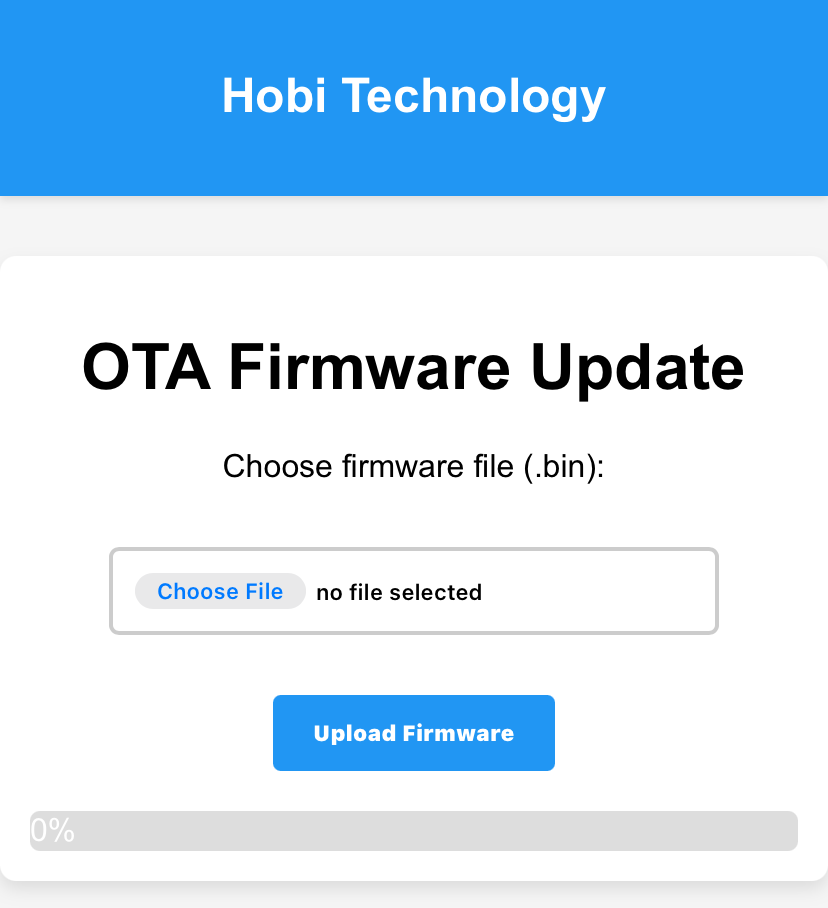
- You will see the OTA Firmware Update interface as shown below.
- Prepare the Firmware File
- Make sure you have the correct firmware file for your device.
- File format:
.bin - Save the file on your computer or mobile device before starting the update.
- Upload the Firmware
- Click the “Choose File” button.
- Select the
.binfirmware file you downloaded. - Click the “Upload Firmware” button to start the update process.
- ⚠️ Do not refresh or close the browser during the upload process.
- Monitor Update Progress
- A progress bar will appear at the bottom of the page.
- 0% → 100% indicates the upload status.
- The device will automatically reboot after the upload is complete.
- Completion
- Once the device restarts, it will automatically load the new firmware.
- You can then reconnect to the web interface to verify the firmware version or continue using your device.
Important Notes
- Ensure that your Penodoro device and your computer/mobile are on the same Wi-Fi network.
- Do not power off or reset the device during the firmware update.
- If the upload fails, restart the device and try again.
- Always use the official firmware provided by Hobi Technology.
- This guide is written for firmware version PENODORO_EAP_V2.1.
- Future updates may introduce additional features or interface changes.